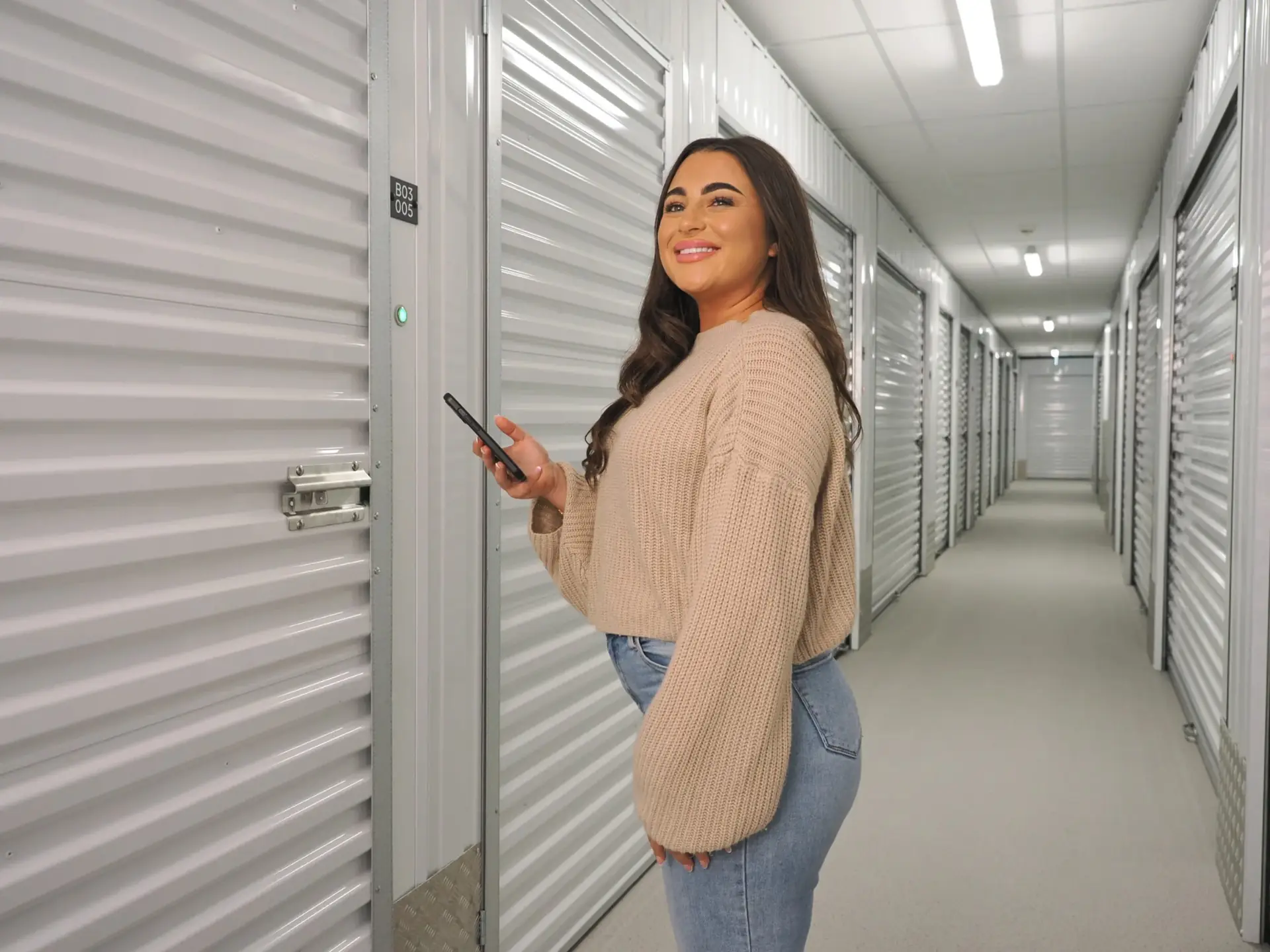
Your phone
is your key
Your gate and your unit both open from one free app. Five minutes to set up, then you never think about it again.
Do this before your first visit
If you tap “Don’t Allow,” nothing will open. No Bluetooth means no gate and no unit. Already tapped it? Phone Settings → Storage Smart Entry → switch Bluetooth and Location back on.
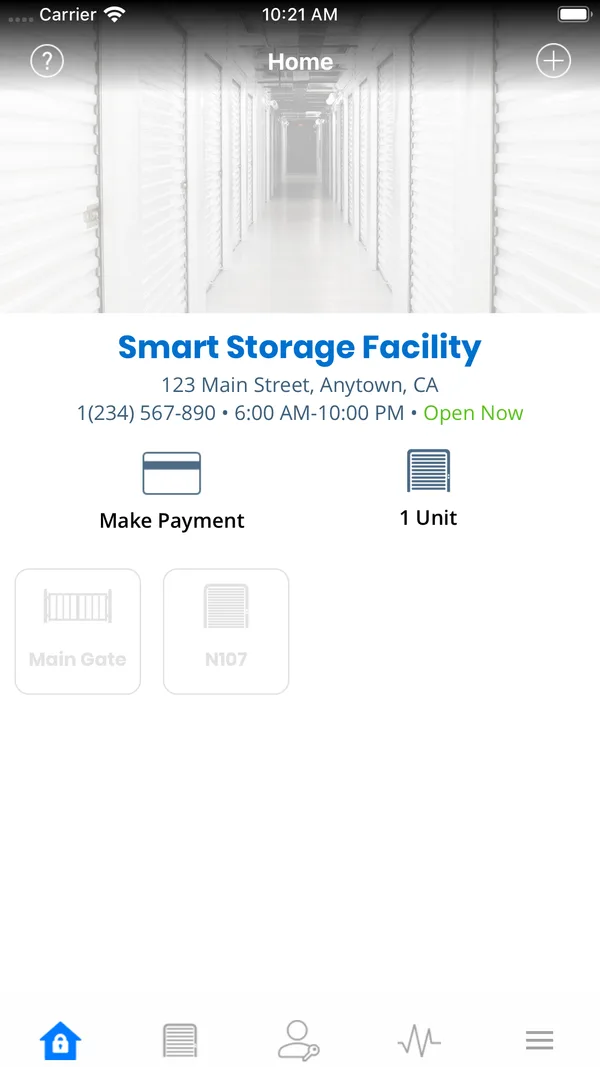
The gate opens from your car
Open the app
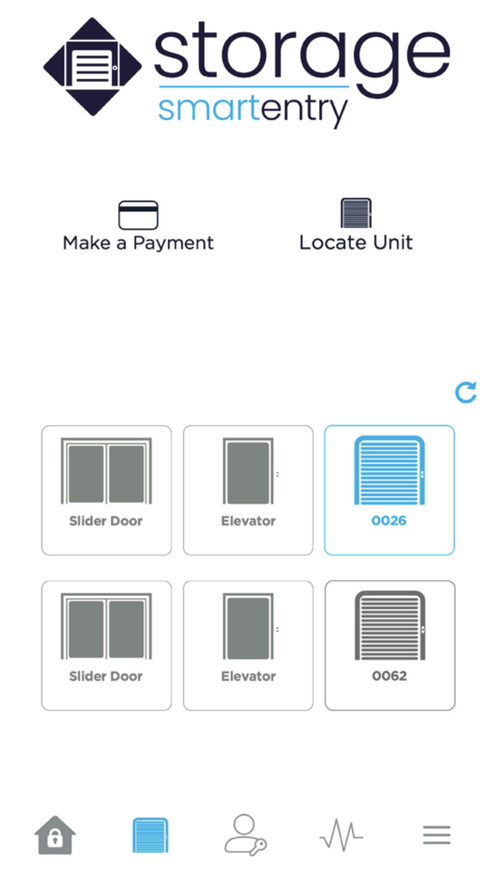
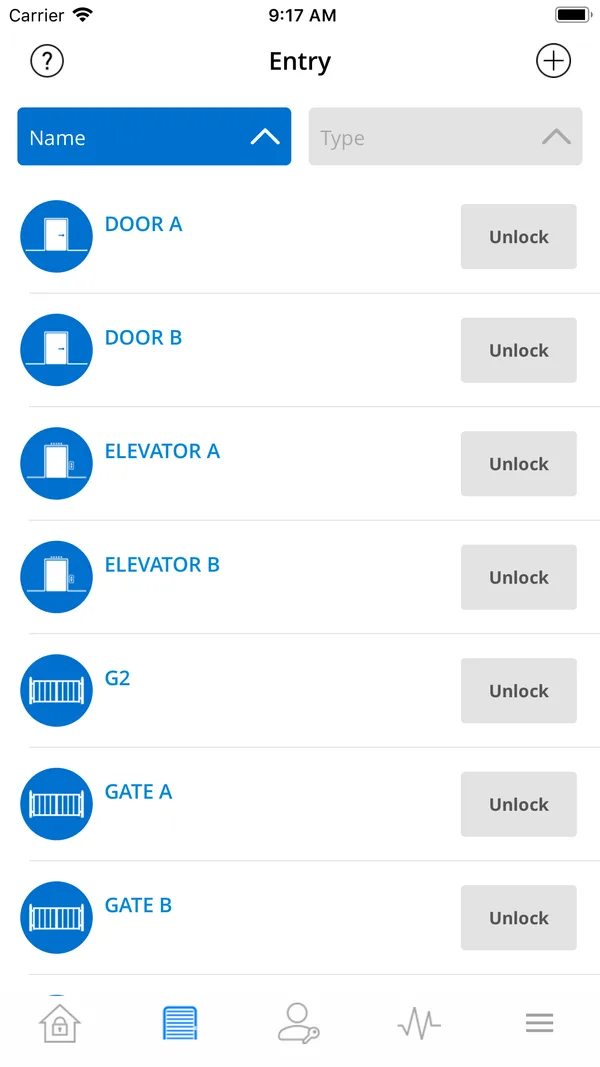
Tap the Entries tab. You see the gate and your unit, nothing else.
Wait a beat
In range, the gate tile lights up. Still dim? Pull a few feet closer.
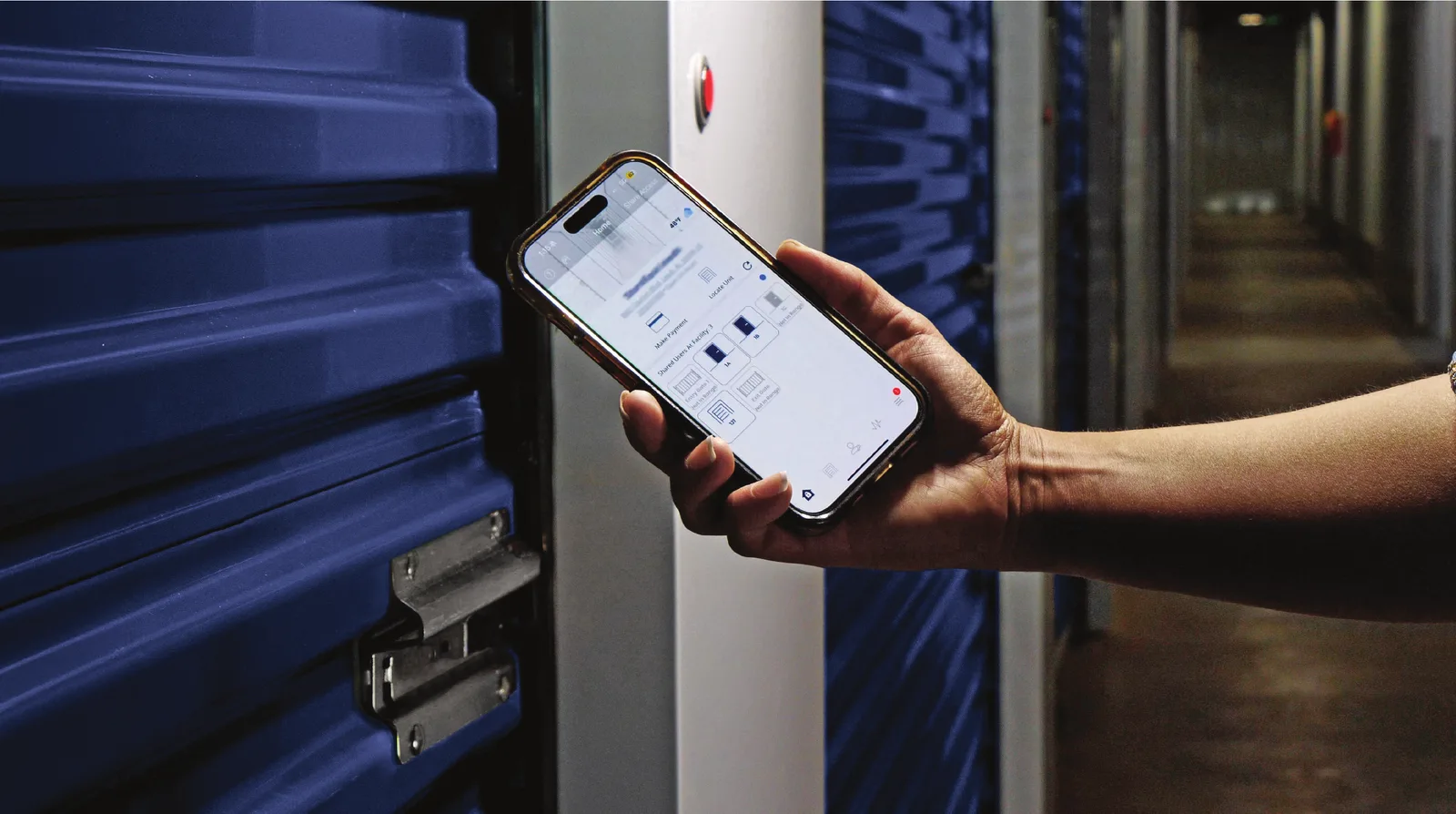
Tap the tile
The gate opens. Same on the way out. No code, no clicker, no office.
A bright tile is a lock your phone can reach right now. Dim ones wake up as you walk closer.
Renting more than one space? They all appear here. The search bar finds a unit by number.
Launch the app while you still have bars. It holds your keys once loaded, so everything still opens with no service.
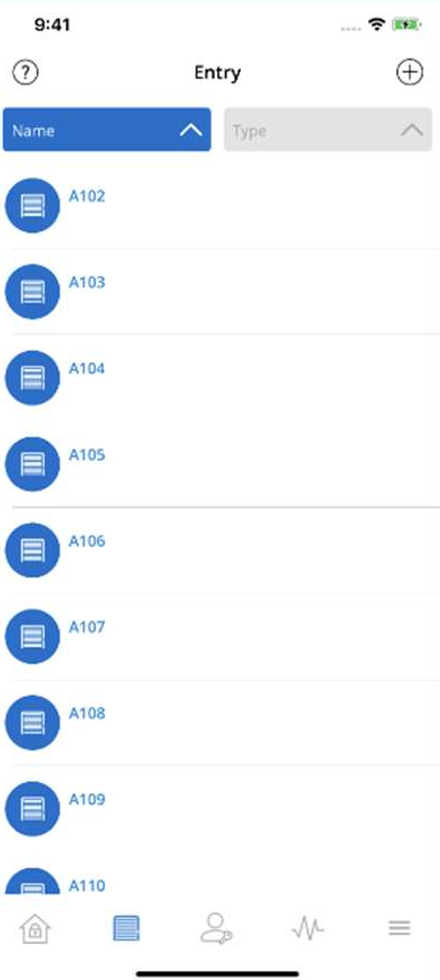
Tap. Slide. Lift.
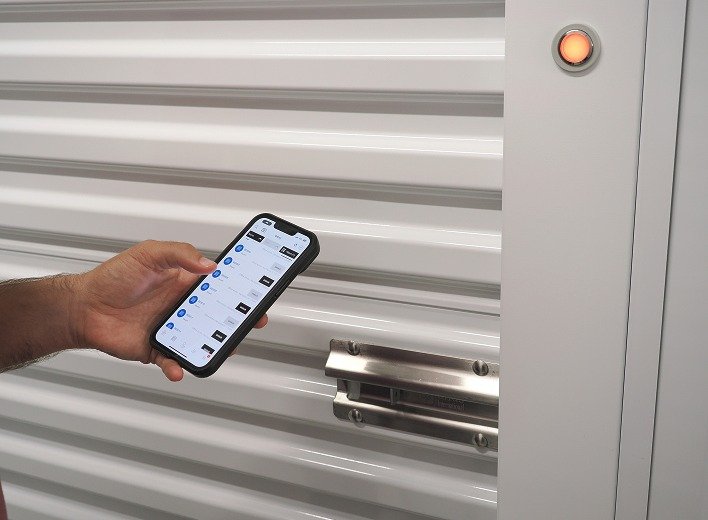

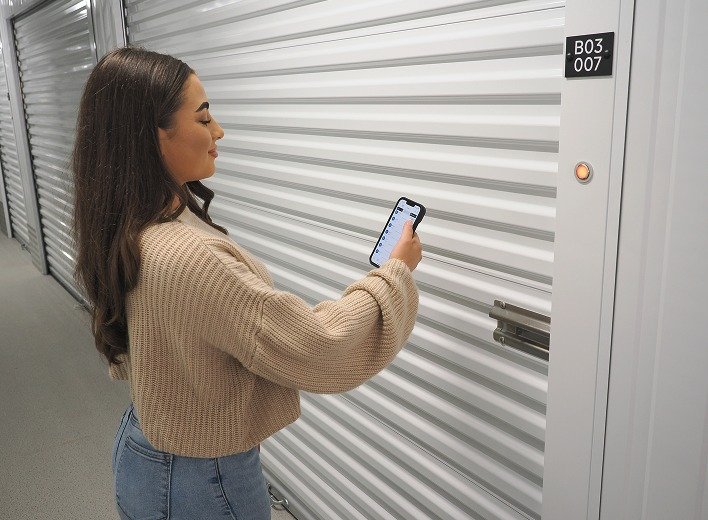
Tap your unit in the app
Stand at the door so the tile lights up, then tap it. You’ll hear the lock release.
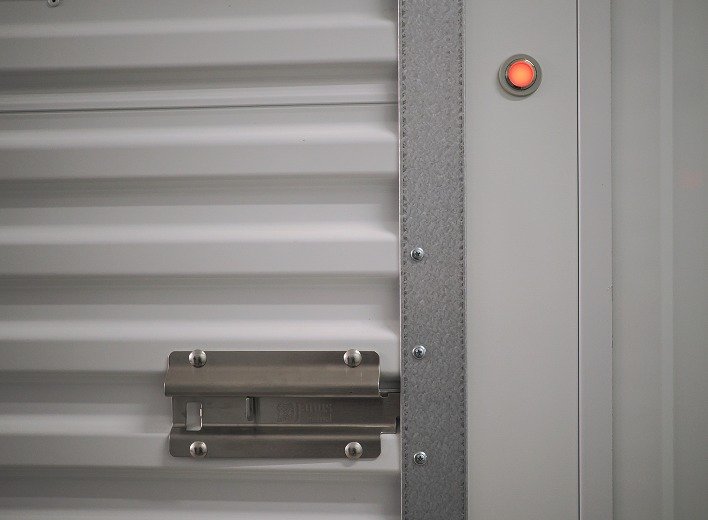

Slide the latch across
The lock is open, but the latch still holds the door. Slide it with your hand.
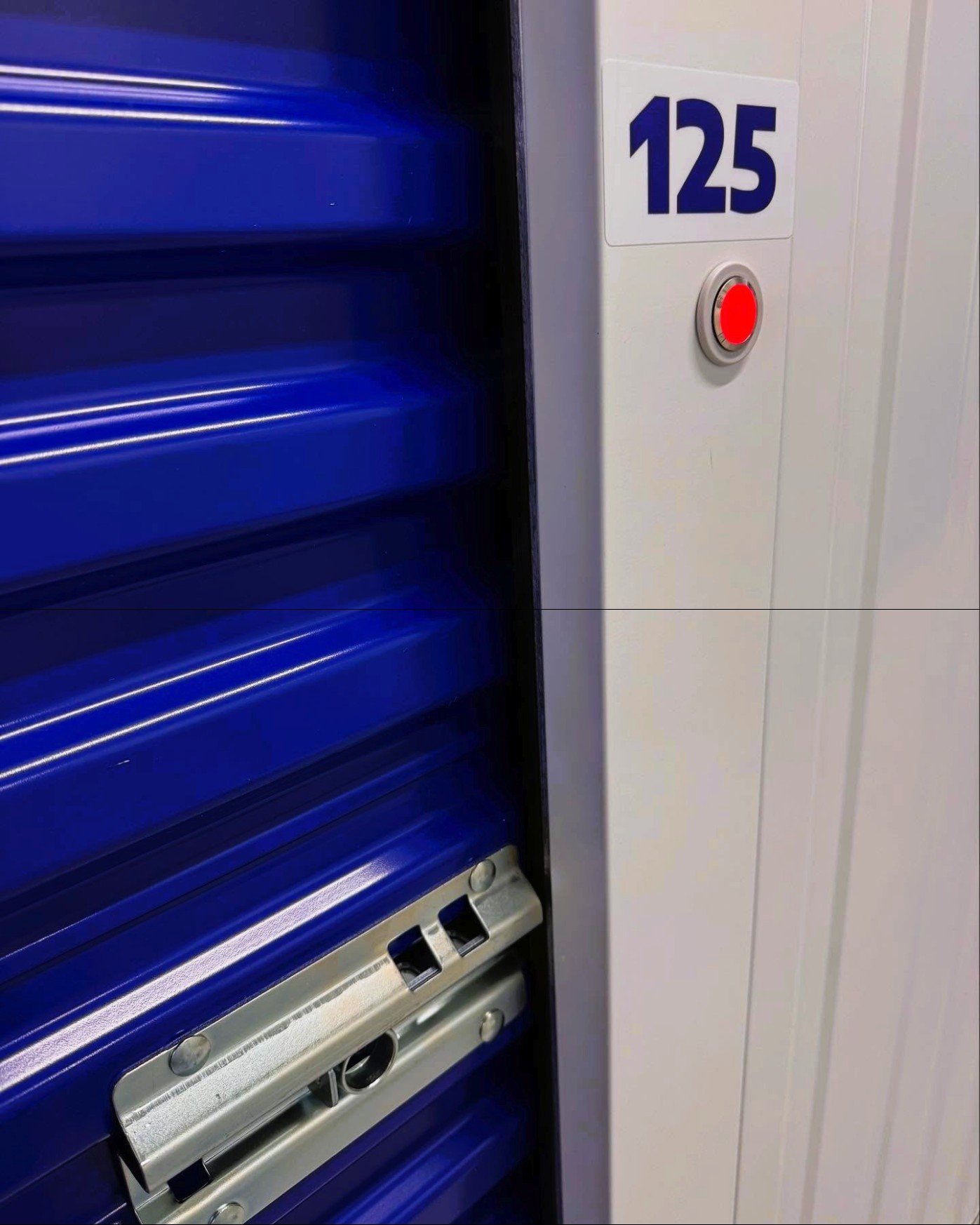

Pull the handle up
Lift the door and you’re in.
Closing up
Shut the door and slide the latch back. Then check the app before you drive off: your unit should show as locked.
Tip from the lock maker
Keep Bluetooth switched on. It’s the one thing that stops a door opening more than anything else, and it costs nothing to leave on.
Send a key. Take it back anytime.
Share a digital key
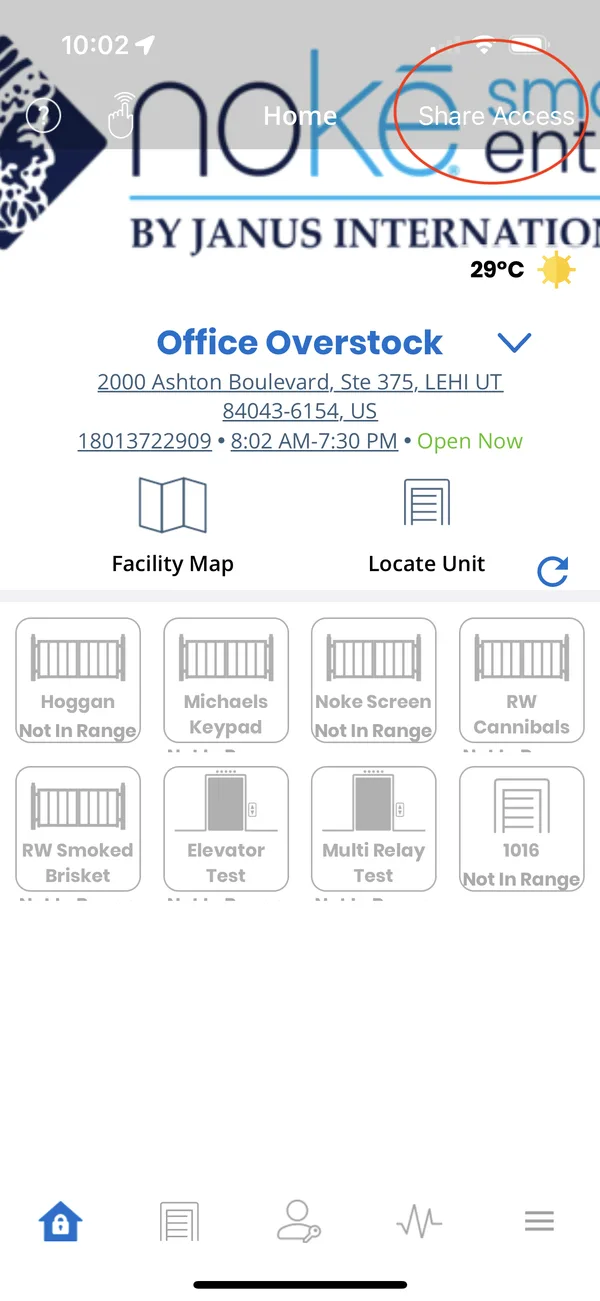
- 1.Tap the + in the top right.
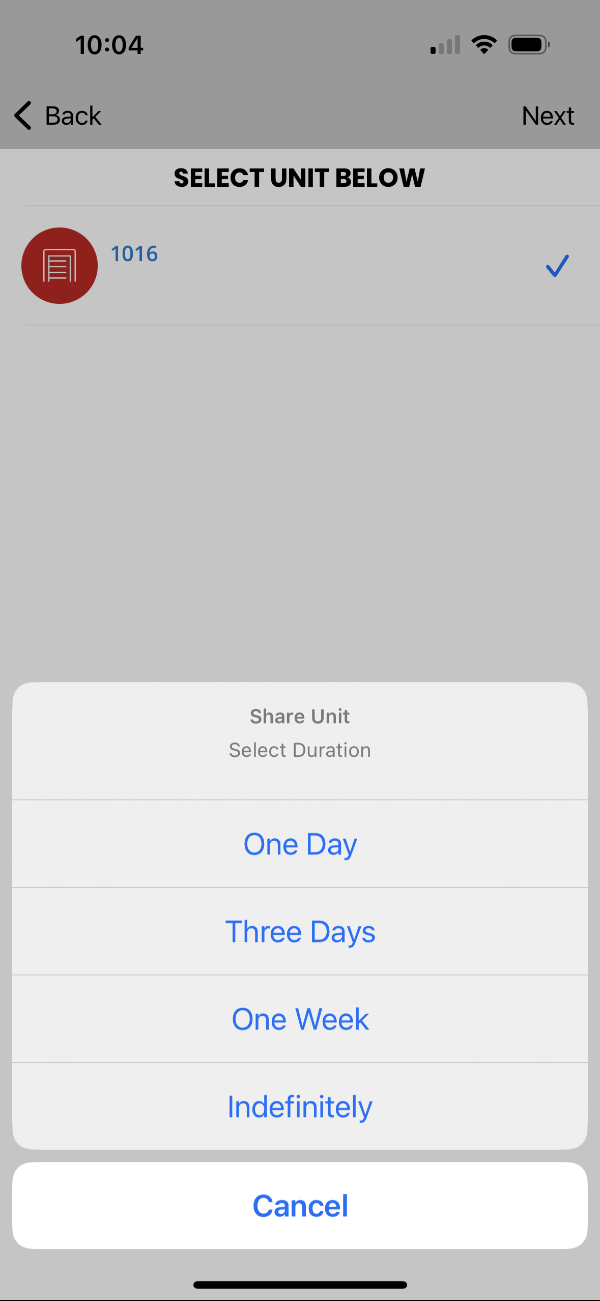
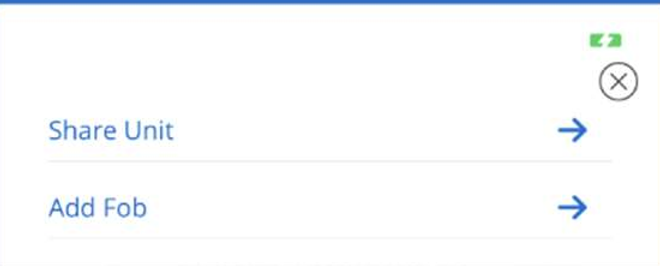
- 2.Choose Share Unit.
- 3.Type their cell number and pick the unit.
Movers, family, a business partner. Revoke it whenever you want and it stops working immediately.
Add a fob
- 1.Tap the +, then Add Fob.
- 2.Squeeze the fob when the app asks.
- 3.Name it so you know whose it is.
For anyone who’d rather not use a phone. Same gate, same unit.
Watch: sharing a key
Seventy seconds, start to finish.
Already on your phone, no setup
See who came
A record of every time your unit opened, and by whom.
Take a key back
Revoke shared access anytime. It stops working immediately.
Find your unit
Locate Unit makes your door chirp and flash so you walk straight to it.
It’s almost always one of these
The tile never lights up
Bluetooth is off. Switch it on in your phone’s settings, then reopen the app.
Worked yesterday, not today (Android)
Location got switched off. Android needs it on for Bluetooth to work. Turn it back on.
No signal at the facility
Launch the app before you drive in, while you still have bars. It stays loaded.
You forgot your password
Use Forgot Password on the login screen. The reset comes by text.
You never got the setup text
Check blocked numbers and spam, then call us and we’ll resend it.
You got a new phone
Download the app again and log in with the same cell number. Your keys live with the account, not the handset.
Help inside the app
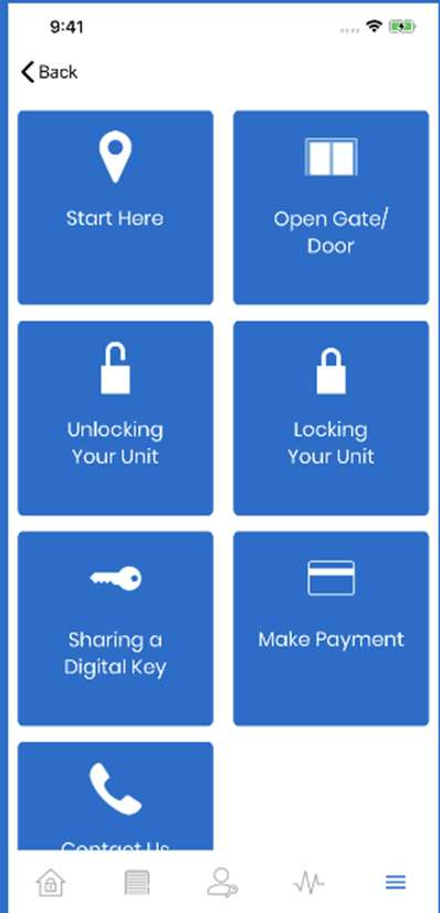
Settings tab (far right) → Help and Support. Short guides for everything the app does, and a Contact Us button that reaches the people who make the lock.
Use it for the app itself. For your space, your bill, or a door that won’t budge, call us.
Call us. A person picks up.
Standing at a door that won’t open? Don’t wait until morning.